Free Chrome extension
The same keyboard shortcuts for every video on the web.
Video Keys lets you play, pause, seek, change the volume and speed, and go fullscreen from your keyboard. It works on sites that have no shortcuts, and on sites that block them.
Also on YouTube.
Every site plays by its own rules
You press Space to pause a tutorial, and the whole page scrolls away instead. One site uses K, another only the arrow keys, some have no shortcuts at all, and an embedded player ignores your keys until you click into it.
Video Keys gives every video the same keys. It catches them before the site's own scripts, so sites that block keys can't stop them, and sites with their own shortcuts don't react twice.
One set of keys for every video
SpaceK
Play / pause←→
Back / forward 5 secondsJL
Back / forward 10 seconds↑↓
Volume up / downM
Mute / unmuteF
FullscreenShift><
Speed up / down by 0.25x0–9
Jump to 0–90% of the videoHomeEnd
Jump to the start / endA short hint appears over the video after each key, so you always see what changed.
How it works
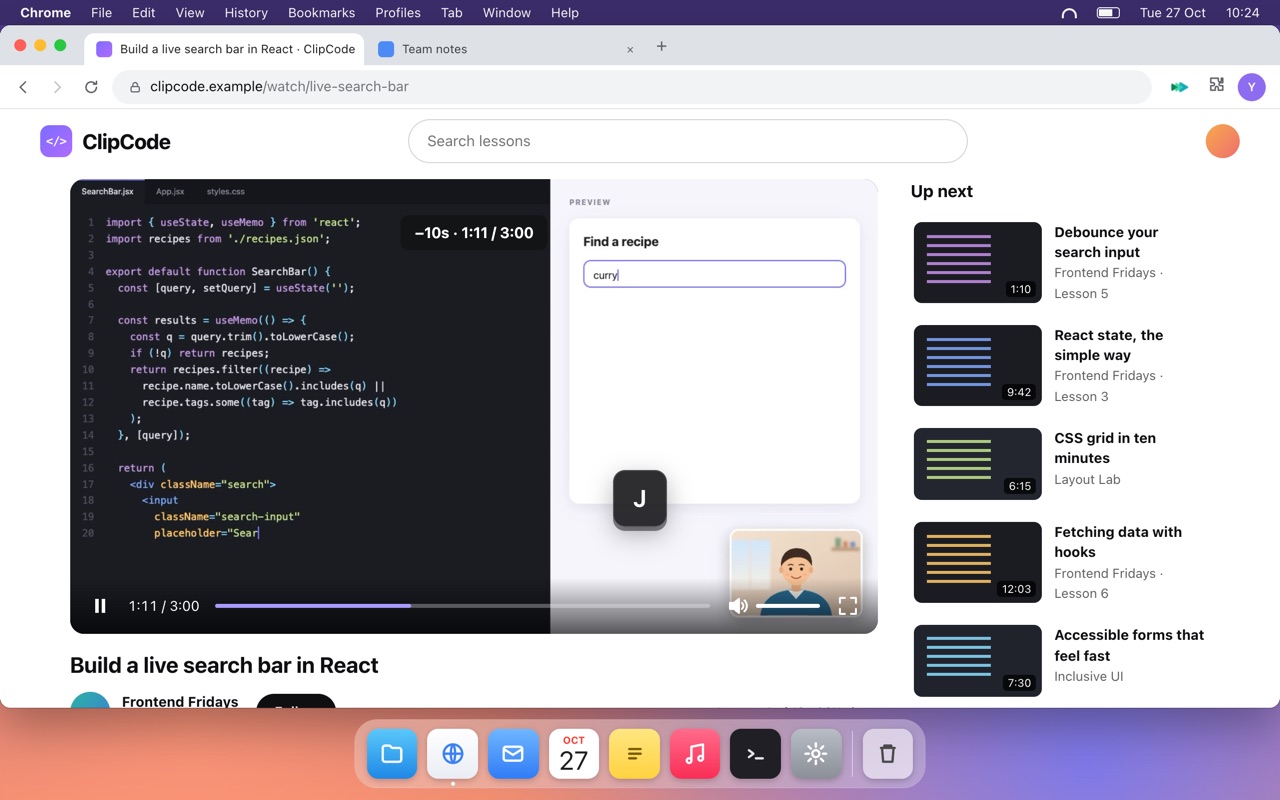
Press a key
Video Keys controls the video in view, even inside a custom or embedded player, and shows a short hint.
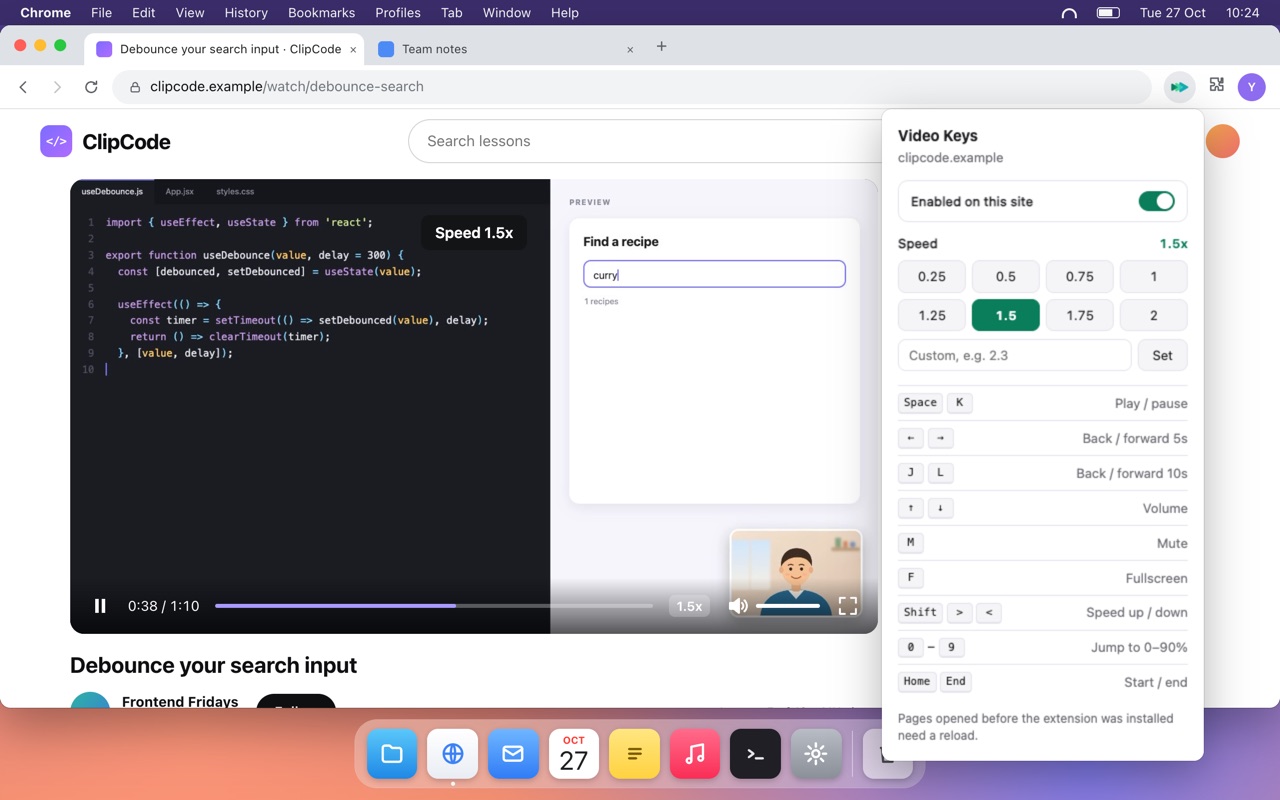
Pick a speed for the site
Choose 0.25x to 2x in the popup, or type any speed up to 16x. Each site remembers its own.
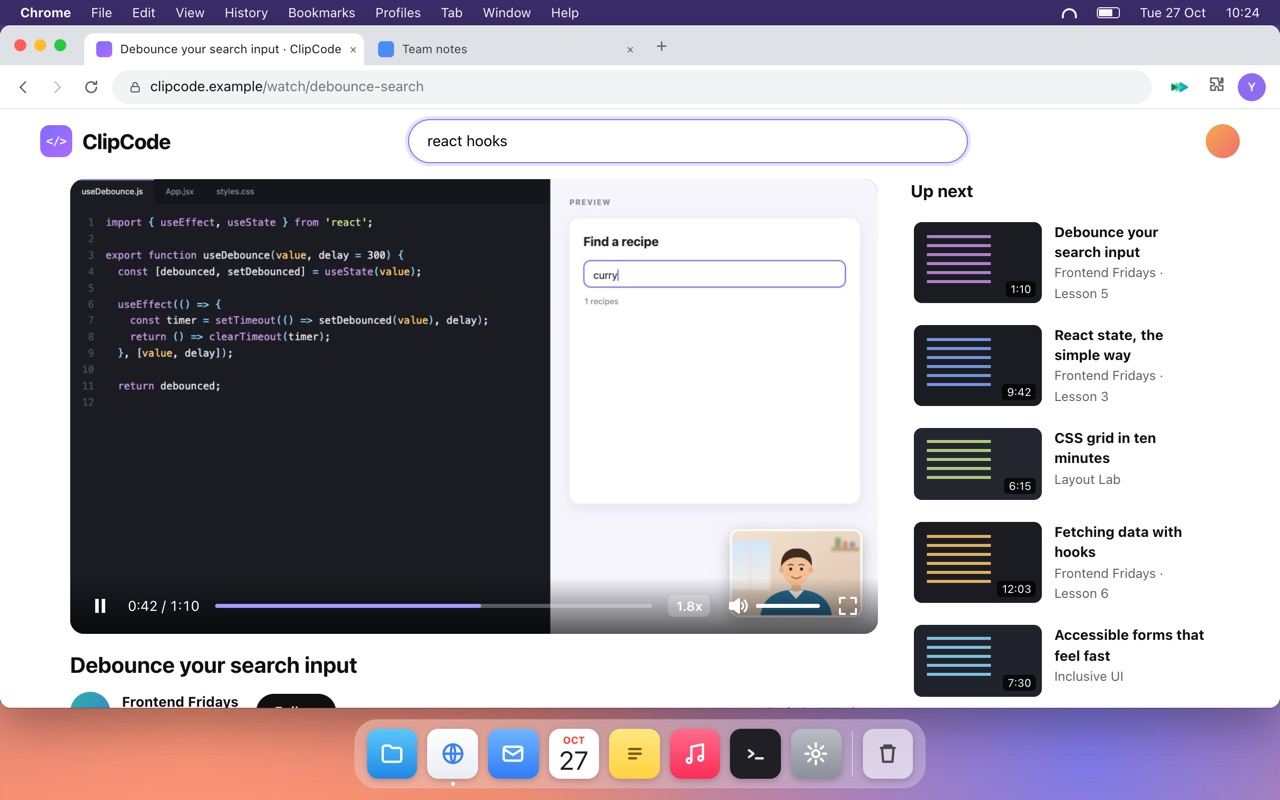
Type as usual
In a search box or a comment field, your keys go where you type. Without a video in view, Space still scrolls.
Made to stay out of your way
Works where shortcuts don't
Sites that block keys can't stop them, and sites with their own shortcuts don't react twice.
Embedded players too
Controls videos inside players from other sites, without clicking into the player first.
Always the right video
With several videos on a page, it picks the one that's playing, then the one you played last, then the largest one in view.
Fullscreen that keeps the controls
F uses the site's own fullscreen button when there is one, so the player's controls stay.
Speed remembered per site
Your speed comes back whenever a video starts, without fighting sites that reset it.
Off for any site
Switch it off for a site from the popup. The change applies right away and syncs with Chrome sync.
Nothing leaves your browser
There are no servers, no account, no analytics and no ads. Video Keys only looks at the video on the page, never records what you type, and keeps your settings in Chrome.
Read the privacy policyQuestions
Which sites does Video Keys work on?
Any web page with an HTML5 video, including sites without shortcuts, sites that block keys, custom players and players embedded from other sites. Chrome doesn't allow extensions on its own pages, such as chrome:// pages and the Chrome Web Store.
Will Space still scroll the page?
Yes, when no video is in view. Video Keys only takes over its keys while a video is in view, and never while you type in a text field or hold Ctrl, ⌘ or ⌥.
How do I change the playback speed?
Press Shift + > to speed up or Shift + < to slow down by 0.25x, or open the popup to pick 0.25x to 2x or type any speed from 0.1x to 16x. Each site remembers its own speed, and choosing 1x forgets it.
Can I turn Video Keys off for one site?
Yes. Click the Video Keys icon and switch it off for that site. The change applies right away, also to embedded players on that site, and follows you to your other computers when Chrome sync is on.
Why don't the keys work on a tab I already had open?
Pages that were open before you installed Video Keys need a reload.
Does Video Keys collect my data?
No. It has no servers, no analytics and no ads. It saves only the sites where you turned it off and the speed you chose for each site, in Chrome's own storage.
Is it free?
Yes, Video Keys is free.